Project Tool
A lightweight production tool: tempo-matched reverb and delay calculators, BPM conversion, an interactive frequency table with MIDI, and a session notepad — all in one tabbed interface. Plug-in formats pass audio through untouched; the standalone app is output-only.
macOS & Windows — VST3, CLAP, AU (macOS), and standalone application
Introduction
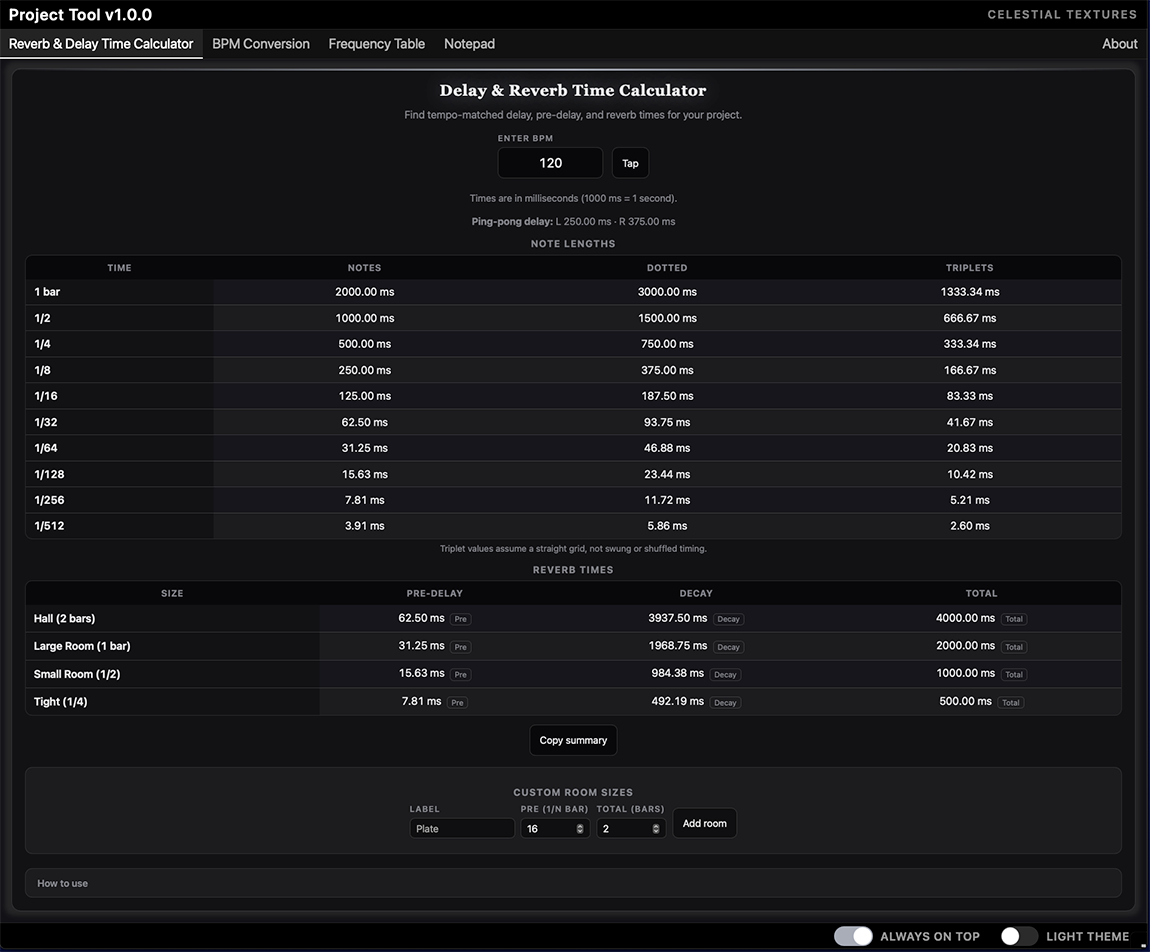
assets/01-full-window.pngProject Tool does not process or colour your audio in plug-in formats — it sits on an insert without changing your sound while you use the built-in calculators and notepad. All tools share a footer for tempo sync, theme, and (standalone) always-on-top.
| Tab | Purpose |
|---|---|
| Reverb & Delay Time Calculator | Note lengths, room pre-delay/decay, ping-pong delay helper |
| BPM Conversion | BPM ↔ Hz, ms, musical note values, LFO rates |
| Frequency Table | Equal-tempered pitches, click/drag tones, MIDI input |
| Notepad | Rich-text session notes saved with your project |
| About | Credits, shortcuts, Reset UI |
Quick Start
- Install for your platform (macOS / Windows) and rescan plug-ins in your DAW.
- Insert Project Tool on a stereo track or bus — audio passes through unchanged.
- Enable Follow host tempo in the footer so calculators track your session BPM.
- Open Reverb & Delay or BPM Conversion — click any value to copy it to the clipboard.
- Use the Notepad for track notes; save the DAW project to recall them later.
- Drag the bottom-right resize handle or resize the host window (VST3 / CLAP) to fit your layout.
Tip. Press 1 … 5 in the standalone app (when not typing) to jump between tabs. Press / to focus the BPM field.
Installation — macOS
Project Tool ships as plug-in bundles, an optional Audio Unit (AU), a standalone application, and an optional HTML manual. System requirement: macOS 11.0 (Big Sur) or later, Apple Silicon or Intel.
| Format | Install location |
|---|---|
| VST3 | /Library/Audio/Plug-Ins/VST3/Celestial Textures/Project Tool.vst3 |
| CLAP | /Library/Audio/Plug-Ins/CLAP/Project Tool.clap |
| AU | /Library/Audio/Plug-Ins/Components/Project Tool.component |
| Application (.app) | /Applications/Celestial Textures/Project Tool.app |
- Quit your DAW (for plug-in installs).
- Run
Project Tool-1.0.1-mac-setup.pkgand select the components you need (include Uninstaller to remove Project Tool later without Terminal). - Re-open your DAW and rescan / validate plug-ins.
- If macOS blocks the plug-in, allow it under System Settings → Privacy & Security, or remove quarantine:
xattr -dr com.apple.quarantine "/Library/Audio/Plug-Ins/VST3/Celestial Textures/Project Tool.vst3"
Where settings live (standalone).
~/Library/Application Support/Celestial Textures/Project Tool/
(settings.ini, plugin_state.bin, etc.).
HTML manual (after installer).
~/Library/Application Support/Celestial Textures/Project Tool/manual/index.html
Installation — Windows
System requirement: Windows 10 or later, 64-bit. WebView2 runtime is required (usually pre-installed on Windows 11).
| Format | Install location |
|---|---|
| VST3 | C:\Program Files\Common Files\VST3\Celestial Textures\Project Tool.vst3\ |
| CLAP | C:\Program Files\Common Files\CLAP\Project Tool.clap |
| Application (.exe) | C:\Program Files\Celestial Textures\Project Tool\Project Tool.exe |
| HTML manual | %ProgramData%\Celestial Textures\Project Tool\manual\ |
- Close your DAW.
- Run
ProjectTool-1.0.1-win-x64-setup.exeas administrator. - Re-open your DAW and rescan plug-ins.
Where settings live.
%ProgramData%\Celestial Textures\Project Tool\
The Standalone Application
The standalone app runs Project Tool without a DAW. Audio is output-only (no input channels) — useful as a floating calculator and notepad on your desktop.
| Platform | Location |
|---|---|
| macOS | /Applications/Celestial Textures/Project Tool.app |
| Windows | C:\Program Files\Celestial Textures\Project Tool\Project Tool.exe |
- HTML manual: Help → Manual opens the installed local manual in your browser (online fallback if the manual was not installed).
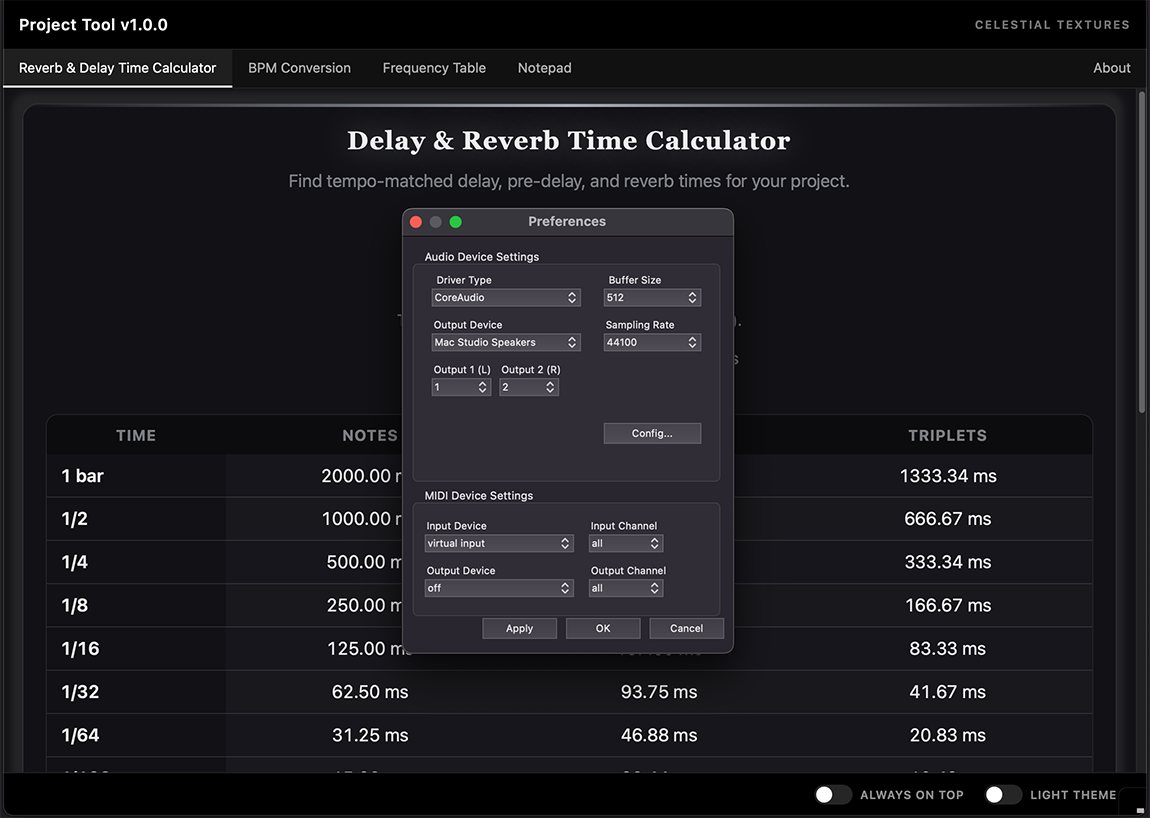
- Audio setup: open File → Preferences… to choose driver, device, sample rate, buffer size, and output channels.
- Always on top: toggle in the footer so the window stays above other apps.
- Session files:
settings.ini,plugin_state.bin(notepad, tab, and theme state), stored under Application Support / ProgramData.
assets/02-standalone-prefs.pngWindow Overview
The interface is a tabbed shell with a shared footer. Five tools load as panels in a single page; global settings apply to every tab.
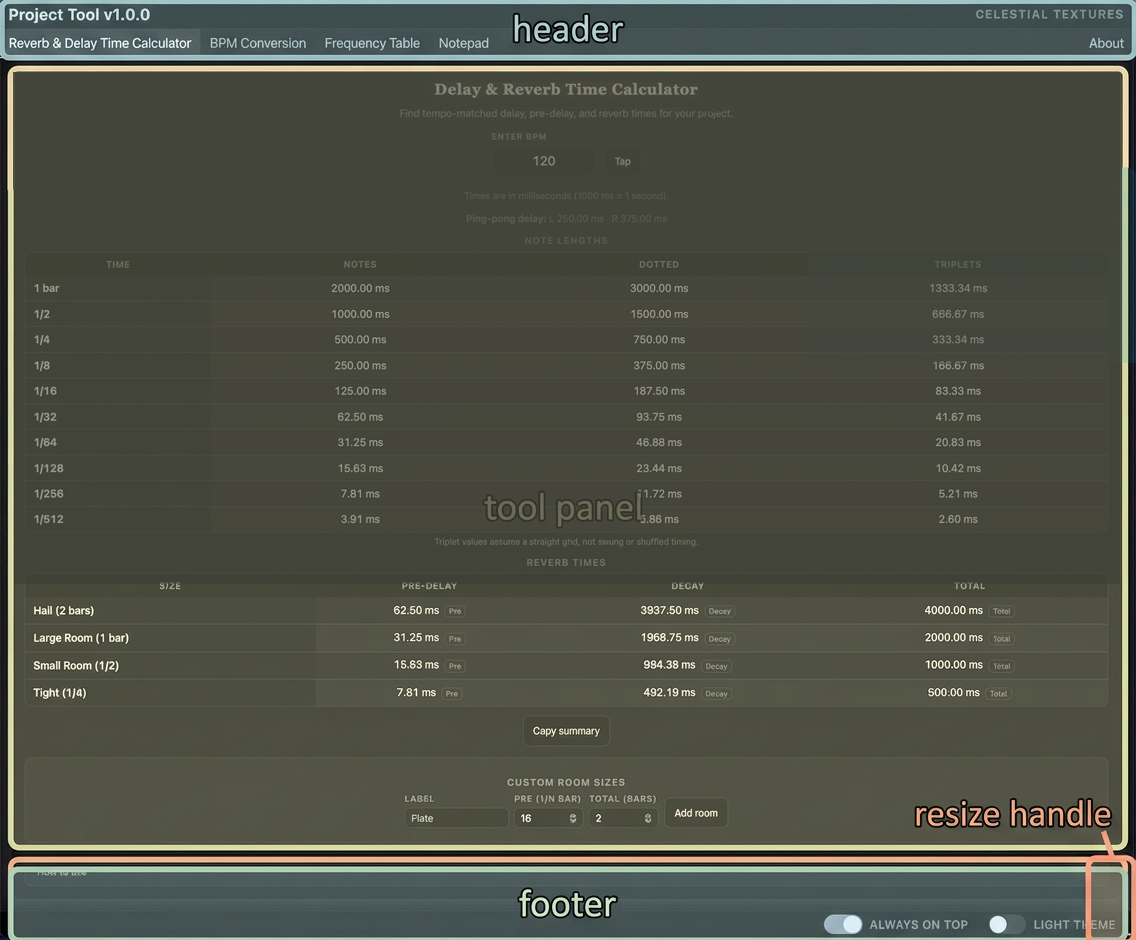
assets/03-overview-annotated.png| Zone | What it does |
|---|---|
| Header | Product name and Celestial Textures branding. |
| Tabs | Reverb & Delay · BPM · Frequency · Notepad · About. |
| Tool panel | Active calculator or notepad (see Shell & Footer). |
| Footer | Follow host tempo, light theme, always on top (standalone). |
| Resize handle | Bottom-right corner drag (see Resizing). |
Shell & Footer

assets/08-footer-settings.png| Control | Description |
|---|---|
| Follow host tempo | Plug-in only. When enabled, the host BPM is pushed to calculator tabs automatically. |
| Light theme | Toggles dark/light appearance for all tabs. Saved with the DAW project (and remembered by the standalone app between launches). |
| Always on top | Standalone app only — keeps the window above other applications. |
Resizing
Default window size is 800 × 600. Supported range: 400 × 300 through 8192 × 8192.
- Drag the resize handle at the bottom-right of the plug-in UI.
- In supported hosts, resize the plug-in window frame (VST3, CLAP).
- Window geometry is saved with the DAW project or standalone preferences.
Stuck geometry? Use Reset UI on the About tab to restore 800 × 600 and defaults.
Reverb & Delay Time Calculator
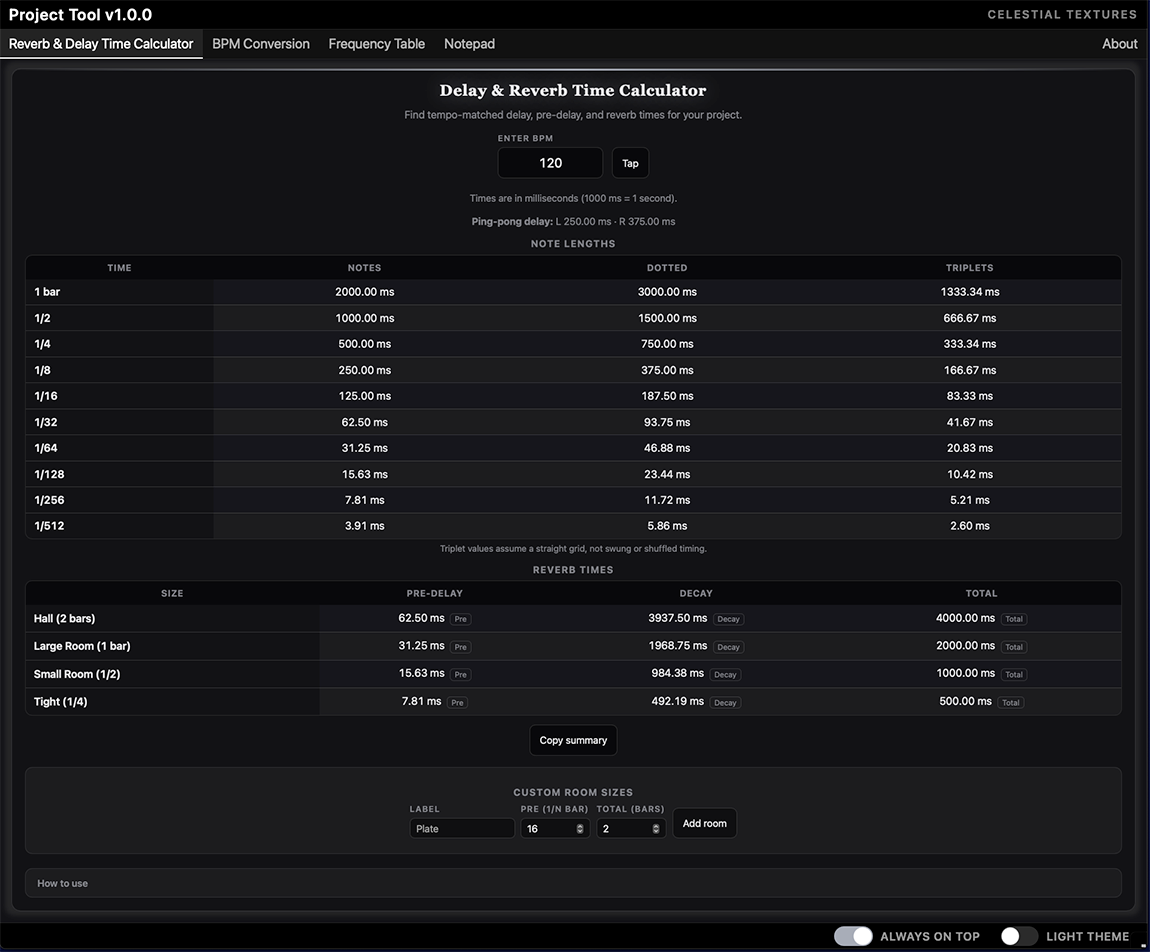
assets/04-rt60-tab.png- Enter BPM (default 120) or use Tap tempo.
- Tables show note-length delays (1/1 … 1/32) and room-size pre-delay/decay suggestions.
- Click any value to copy it to the clipboard (toast confirmation).
- Row actions copy delay pairs for reverb workflows.
- Custom rooms — add your own room name and times (stored in browser local storage per machine).
- Ping-pong helper — dotted delay suggestions for stereo ping-pong.
- Print summary — compact text summary for printing or sharing.
- Triplet / swing footnote explains dotted and triplet relationships.
Tempo sync. With Follow host tempo enabled, BPM updates from the DAW without retyping. The last BPM is also saved in the project (see Persistence).
BPM Conversion
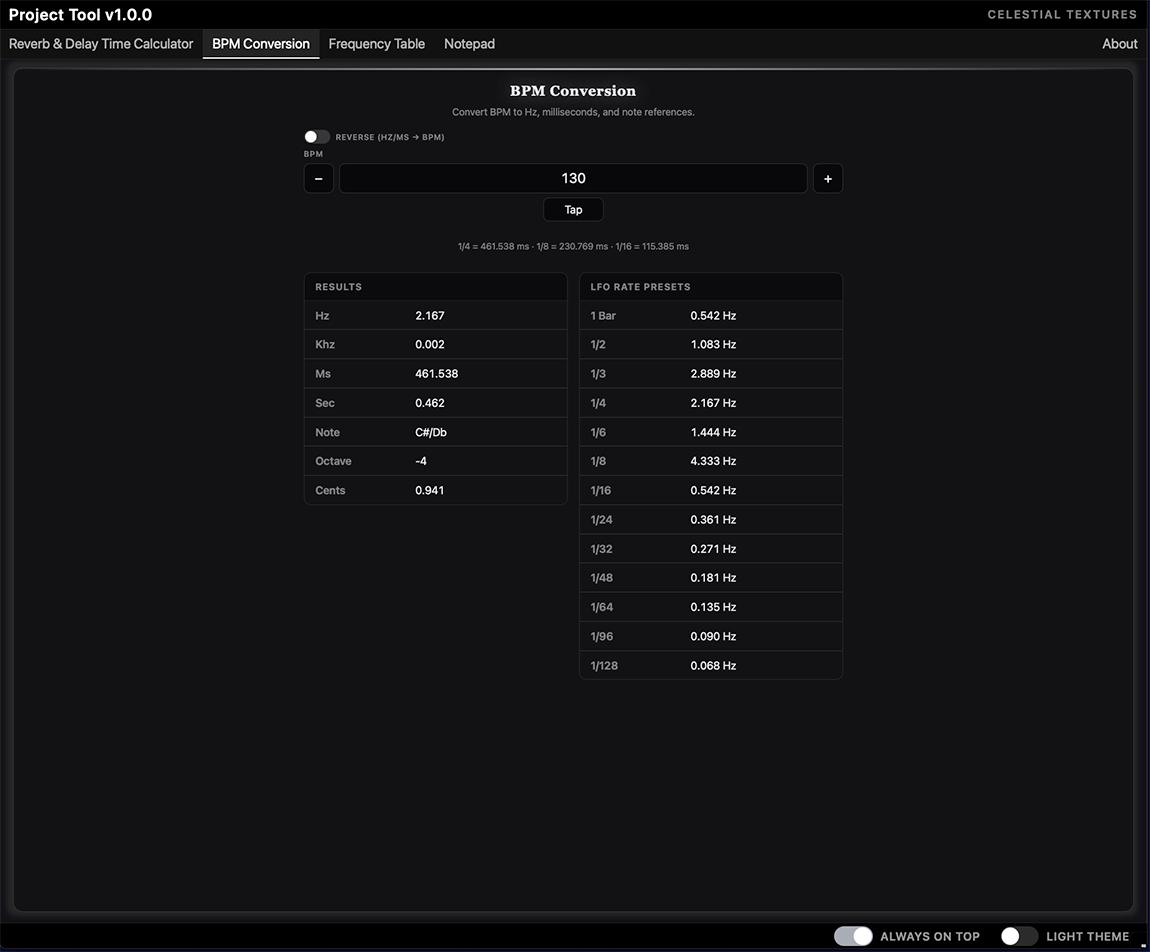
assets/05-bpm-tab.png- Shared BPM with the Reverb tab (syncs across tabs).
- Converts BPM to Hz, kHz, ms, seconds, note length, octave, cents.
- Reverse mode — enter a target time or frequency to solve for BPM.
- Musical subdivisions readout for common note values.
- LFO rate presets — quick musical LFO speeds.
- Mouse wheel on BPM fields adjusts tempo.
Frequency Table
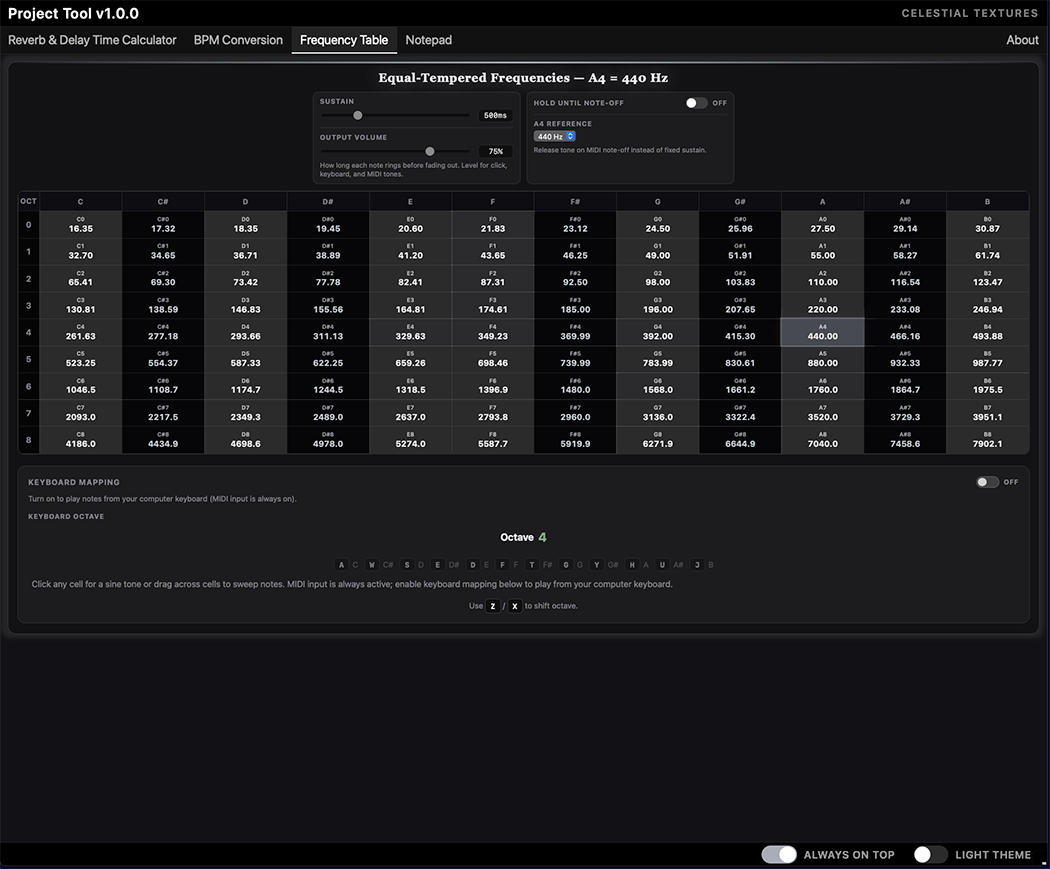
assets/06-freq-tab.png- Equal-tempered frequency table with octave and note names.
- A4 reference — 440 Hz, 432 Hz, or custom tuning.
- Click or drag on the table to audition sine tones.
- MIDI input is always on when the plug-in receives MIDI from the host.
- Optional keyboard mapping (standalone / when focused).
- Sustain — notes hold until MIDI note-off when enabled.
Notepad
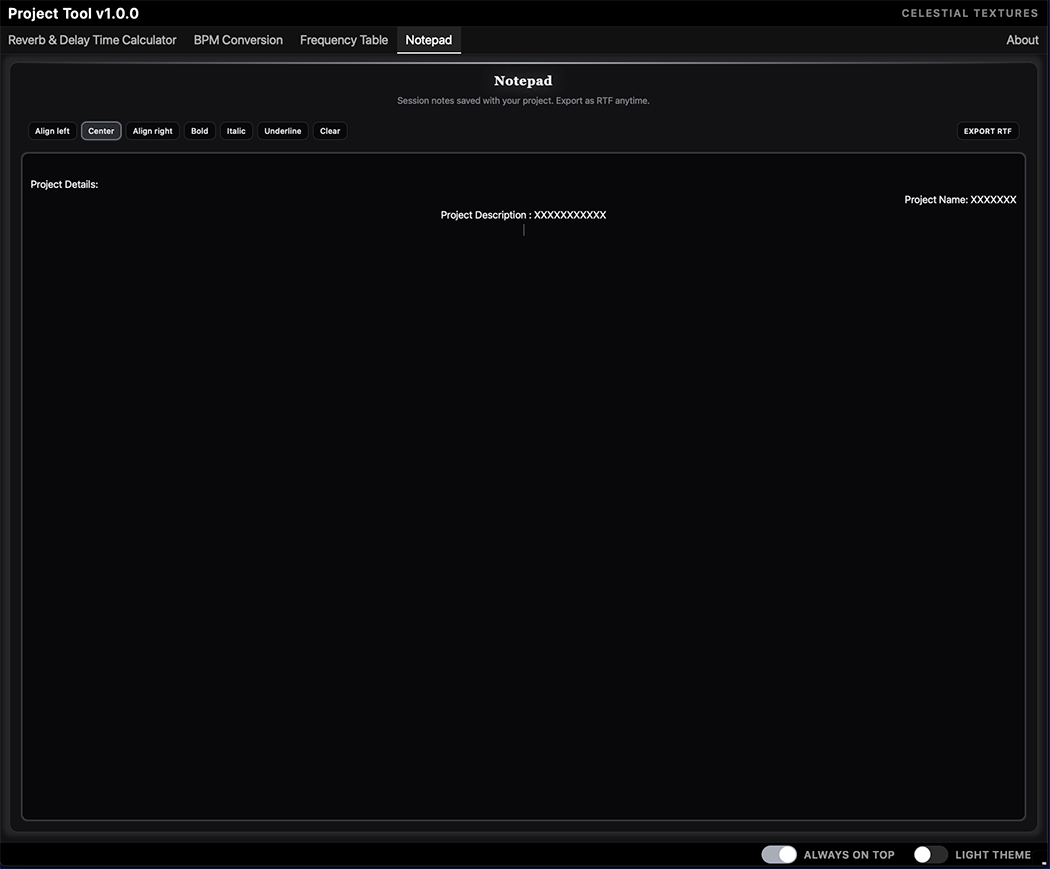
assets/07-notepad-tab.png- Rich-text editor: align left/center/right, bold, italic, underline.
- Arrow keys move the caret when the editor is focused (click inside the text area first).
- Right-click the editor for Copy, Cut, Paste, Select all.
- Export RTF — save notes as Rich Text (macOS: save dialog; Windows/standalone: download).
- Clear — removes all notes (confirmation dialog).
- Notes auto-save to the DAW project (plug-in) or standalone state file.
- Maximum project payload: 256 KB UTF-8.
Multiple instances. Each plug-in instance on a track keeps its own notepad content in the DAW project. Wait about half a second after typing before saving so the latest text is captured.
About & Reset UI
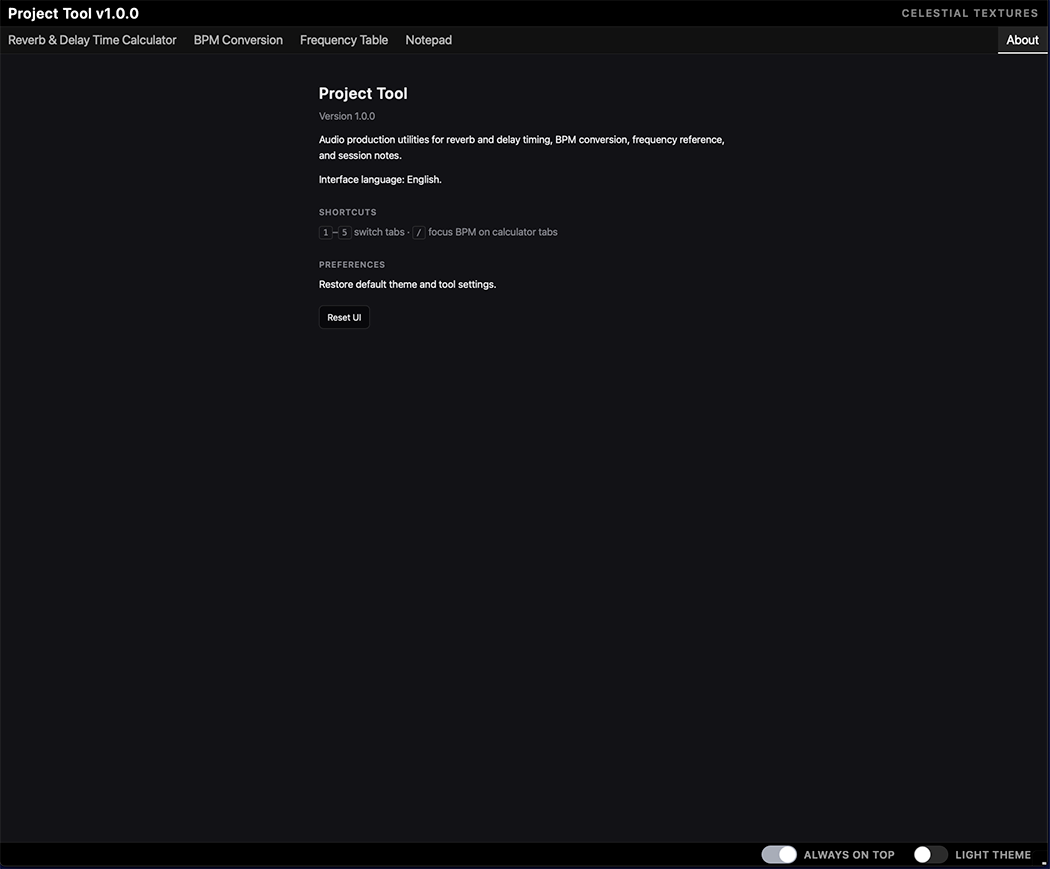
assets/09-about-tab.pngThe About tab lists version, credits, and keyboard shortcuts.
Reset UI restores:
- Window size to 800 × 600
- Default footer preferences (theme back to dark)
- Active tab to Reverb & Delay
- Notepad content cleared (project state updated on next save)
Keyboard Shortcuts
| Shortcut | Action | Context |
|---|---|---|
| 1 … 5 | Switch tabs | Standalone app (when not typing) |
| / | Focus BPM field | Standalone app |
| ⌘C / Ctrl+C | Copy selection | Notepad, copyable cells |
| ← → ↑ ↓ | Move caret | Notepad editor (when focused) |
| Right-click | Edit menu (copy/cut/paste) | Notepad editor |
Project Persistence
The plug-in saves non-parameter state in the host project file (per instance):
- Notepad HTML content
- Last active tab
- Light/dark theme
- Last BPM (also exposed as an automatable parameter in VST3)
Calculator custom rows and locale preferences use browser localStorage on
that machine — they are not stored in the DAW project.
User data folders (standalone):
macOS: ~/Library/Application Support/Celestial Textures/Project Tool/
Windows: %ProgramData%\Celestial Textures\Project Tool\
Plug-in Formats
| Format | macOS | Windows |
|---|---|---|
| VST3 | Yes | Yes |
| AU | Yes | — |
| CLAP | Yes | Yes |
| Standalone | Yes | Yes |
Audio I/O (plug-in): 2 inputs, 2 outputs — stereo pass-through, untouched.
Audio I/O (standalone): 0 inputs, 2 outputs — no input, silent output.
Troubleshooting / FAQ
The plug-in does not appear in my DAW.
Confirm architecture (Apple Silicon / Intel, x64 Windows), install path, and rescan plug-ins. On macOS, check quarantine (see Installation — macOS).
The UI is blank.
Windows: install the WebView2 Runtime. Reinstall the plug-in or standalone app from a fresh Release build (the UI is embedded in the binary, not loaded from external files).
Notepad or tab not restored after reopening the project.
Save the DAW project after editing. Some hosts only snapshot plug-in state on project save. Allow ~500 ms after typing for the notepad debounce to reach the plug-in.
I cannot resize the window.
Try dragging the bottom-right resize handle or resizing the host plug-in window frame. Use Reset UI on the About tab if geometry is stuck.
Where is the HTML manual?
In the standalone app, use Help → Manual. If the installer placed the manual, the local file opens; otherwise the online manual opens in your browser. Or open the file directly:
macOS (after installer):
~/Library/Application Support/Celestial Textures/Project Tool/manual/index.html
Windows:
%ProgramData%\Celestial Textures\Project Tool\manual\index.html
Specifications
| Item | Detail |
|---|---|
| Type | Production tool (calculators + notepad) |
| Channels (plug-in) | Stereo in / stereo out — pass-through |
| Channels (standalone) | 0 in / stereo out — silent |
| Formats | VST3, CLAP, AU (macOS), standalone |
| Platforms | macOS 11.0+ · Windows 10+ (64-bit) |
| MIDI | Input enabled (Frequency Table) |
| Default UI size | 800 × 600 (resizable 400×300 … 8192×8192) |
| State | Notepad, active tab, theme, last BPM in DAW projects; standalone uses plugin_state.bin |
| Version | 1.0.1 |