Quick Tray
A lightweight launcher that gives you one-click access to your favourite applications from the menu bar (macOS) or system tray (Windows). Add up to 25 apps, reorder them, pick a custom icon, and optionally start Quick Tray at login.
macOS 13.0 (Ventura) or later — menu bar only (no Dock icon)
Windows 10 or later — notification area (system tray) only
Introduction
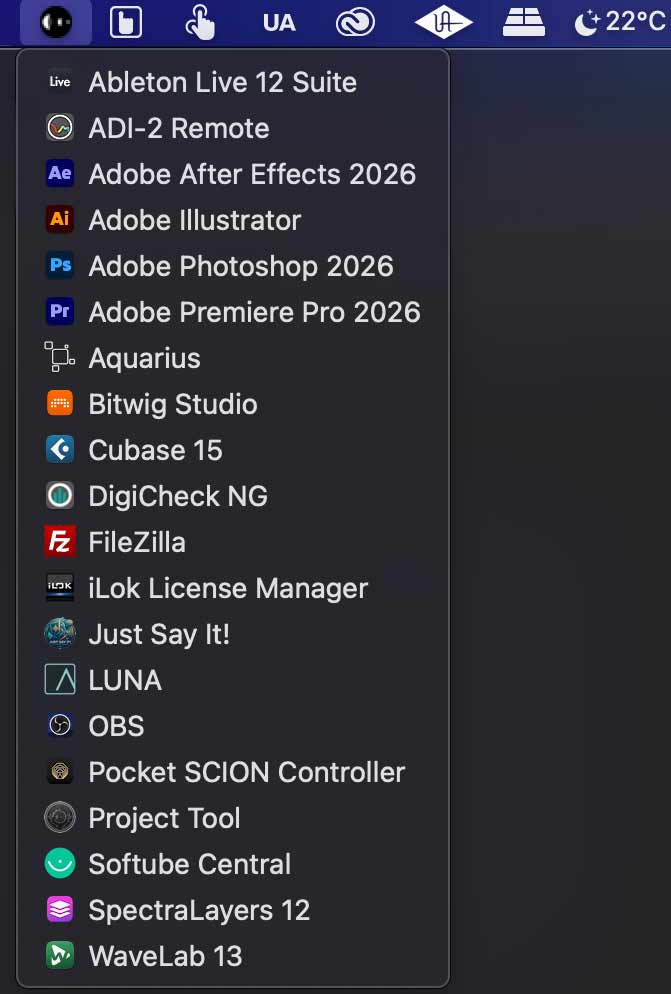
Quick Tray runs from the menu bar. It does not appear in the Dock. Left-click the icon to open your application list; right-click for Settings... and Quit.
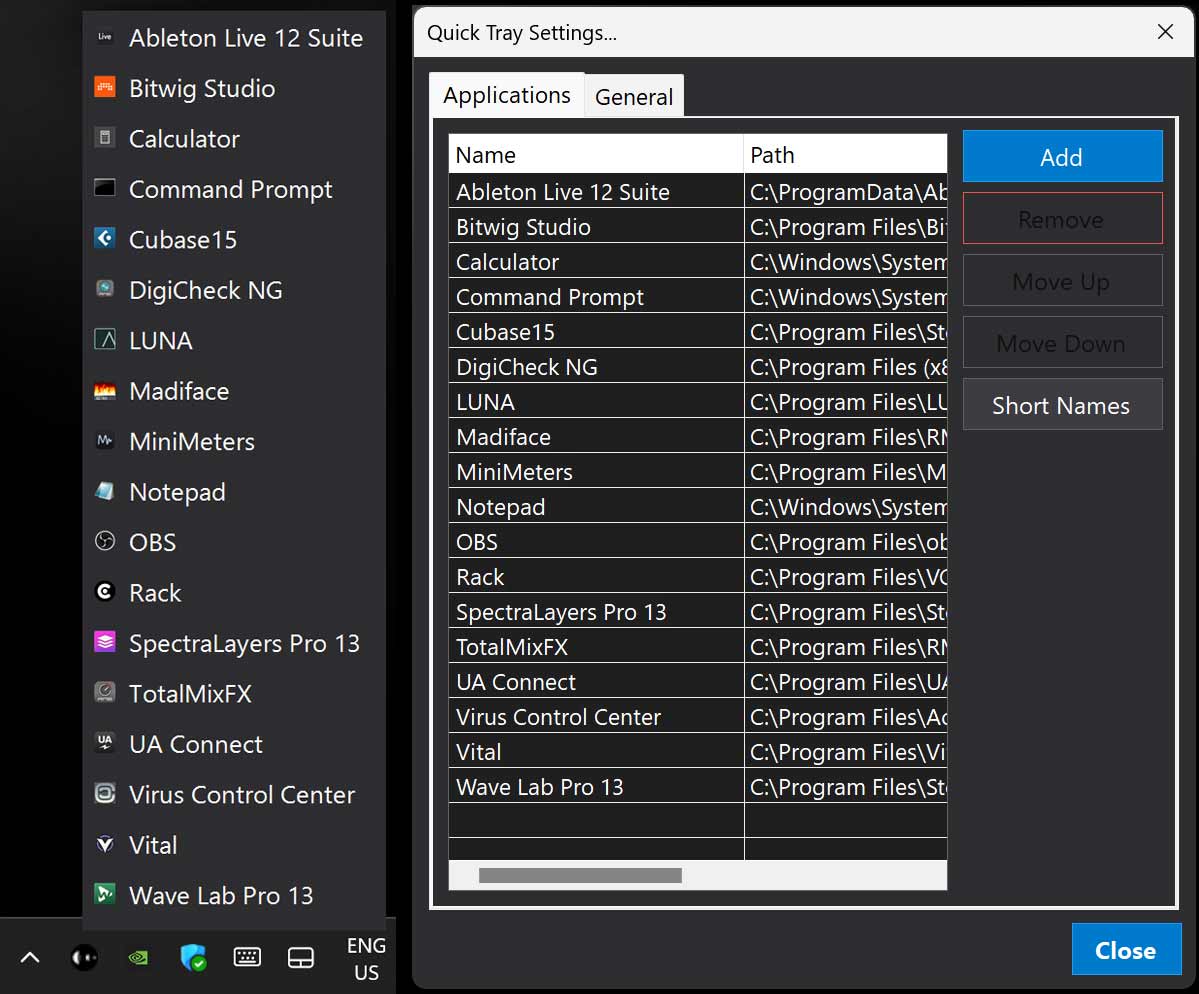
Quick Tray runs from the notification area (system tray). Left-click the icon to open your configured application list; right-click for Settings... and Exit.
Quick Start
- Install Quick Tray.app to
/Applications/Celestial Textures/(installer) or drag from the disk image. - Launch Quick Tray. The menu bar icon appears.
- Right-click the icon → Settings... → use Add... in the Applications List.
- Left-click the icon to launch any listed app.
- Optional: enable Run At Startup in the General section (signed build, macOS 13+).
- Run the Celestial Textures Quick Tray setup installer (
Quick Tray-1.0.3-win-x64-setup.exe). - Launch Quick Tray from the Start Menu. The tray icon appears in the notification area.
- Right-click the icon → Settings... → Applications tab → Add.
- Left-click the icon to launch any listed app.
- Optional: enable Run At Startup on the General tab.
Install
Installer (.pkg): Run the Celestial Textures setup package (Quick Tray-1.0.2-mac-setup.pkg). Components include the application,
HTML manual (this file), and Uninstall Quick Tray.app under
/Applications/Celestial Textures/Uninstallers/.
Disk image (.dmg): Drag Quick Tray.app to Applications. The Manual/ folder
on the image contains legal text; the full HTML manual is copied on first launch or via the installer.
Gatekeeper. If macOS blocks the app, open System Settings → Privacy & Security
and choose Open Anyway, or remove quarantine:
xattr -dr com.apple.quarantine "/Applications/Celestial Textures/Quick Tray.app"
Manual location after install:
~/Library/Application Support/Celestial Textures/Quick Tray/manual/index.html
Install — Windows
Installer (NSIS): Run the setup package (default location:
%ProgramFiles%\Celestial Textures\Quick Tray\). The installer places the application,
default tray icon, HTML manual, and uninstaller.
Start Menu shortcuts: Quick Tray, Quick Tray Manual, and Uninstall.
Optional desktop shortcuts (installer Options page): Quick Tray and/or Quick Tray Manual.
Manual location after install:
%ProgramData%\Celestial Textures\Quick Tray\manual\index.html
Menu Bar Icon
Tray Icon
Quick Tray uses a small icon on the right side of the menu bar (near the clock and Control Centre).
The default icon is built into the app. In Settings... → General, use Browse... to choose
a custom .ico file, or Default to restore the built-in icon.
Quick Tray uses a small icon in the notification area (click the ^ chevron if hidden).
The default icon is installed as default.ico. On the General tab, use Browse... for another
.ico file, or Default Icon to restore the built-in icon.
App Menu (left-click)
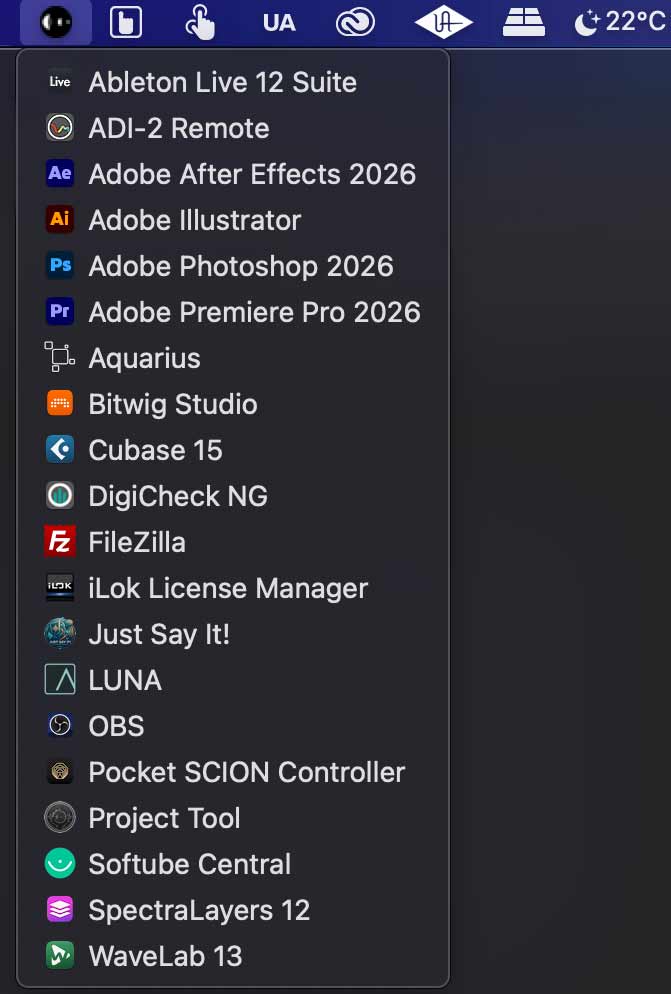
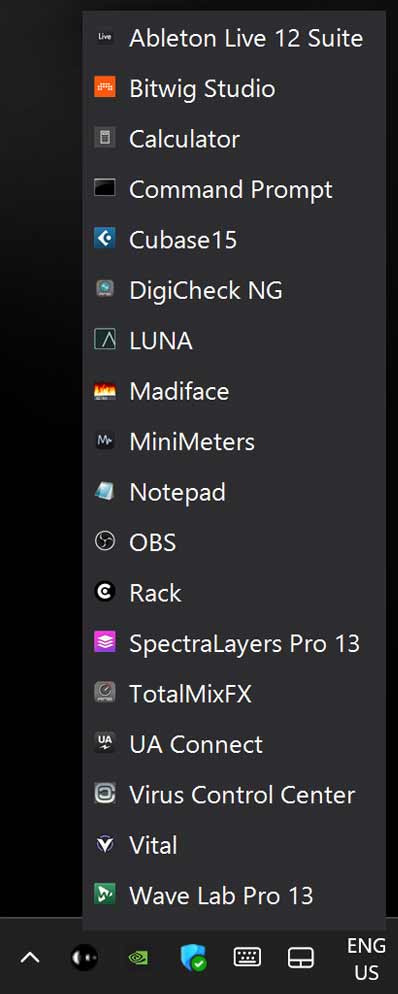
Left-click the Quick Tray icon to show your application list. Click an entry to launch that application.
Quick Tray uses Apple Events to start apps; macOS may ask you to allow this the first time.
Apps with missing or invalid paths are skipped in the menu.
Maximum 25 applications. List order in Settings matches the menu order.
Context Menu (right-click)
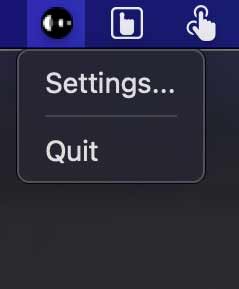
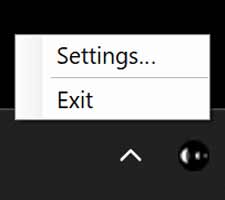
- Settings... — opens the Quick Tray settings window.
- Quit — exits Quick Tray (launched apps stay open).
- Exit — closes Quick Tray (launched apps stay open).
Launching Apps
Quick Tray launches .app bundles. If an app was moved or deleted, remove it from the list and add it again.
Quick Tray launches .exe files. If a program was moved or deleted, remove it from the list and add it again.
Only one instance of Quick Tray runs at a time.
Settings — Applications
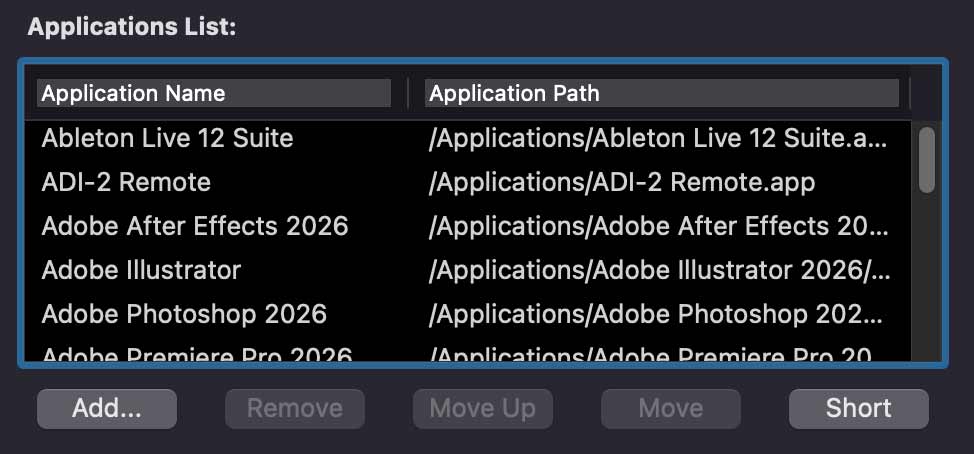
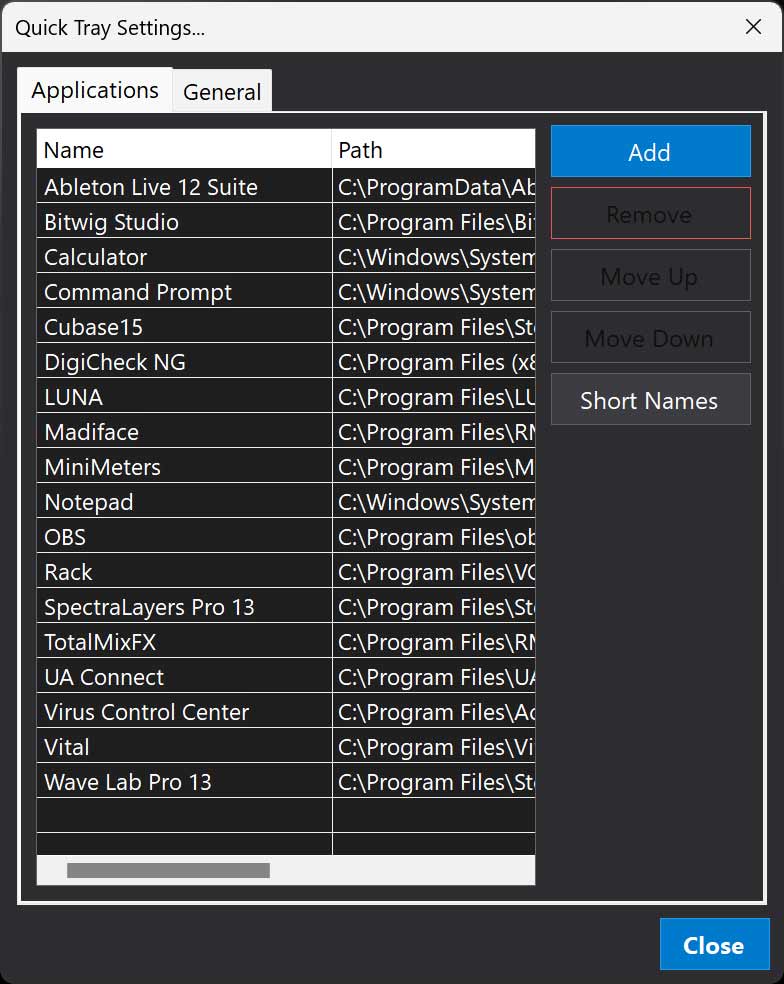
Open Settings... from the right-click menu. The Applications List is at the top of the window.
Open Settings... and select the Applications tab.
- Add... — pick an application (
.appbundle). - Add — pick an executable (
.exe). - Remove — remove the selected entry.
- Move Up / Move Down — change menu order.
- Short Names — sort by name (toggle ascending / descending).
Changes are saved automatically. Click Close when finished.Click Close at the bottom when finished.
Settings — General & About
Settings — General
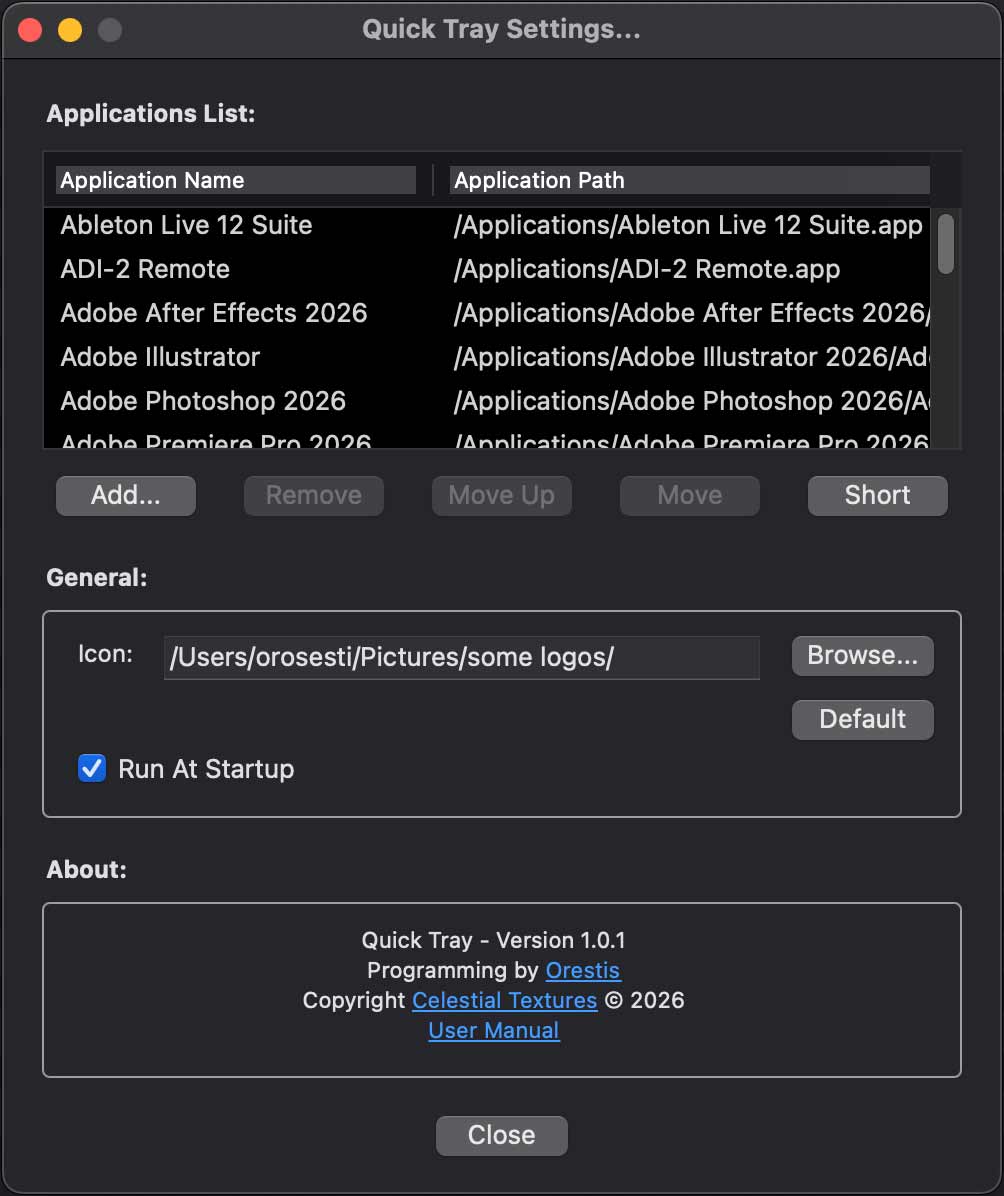
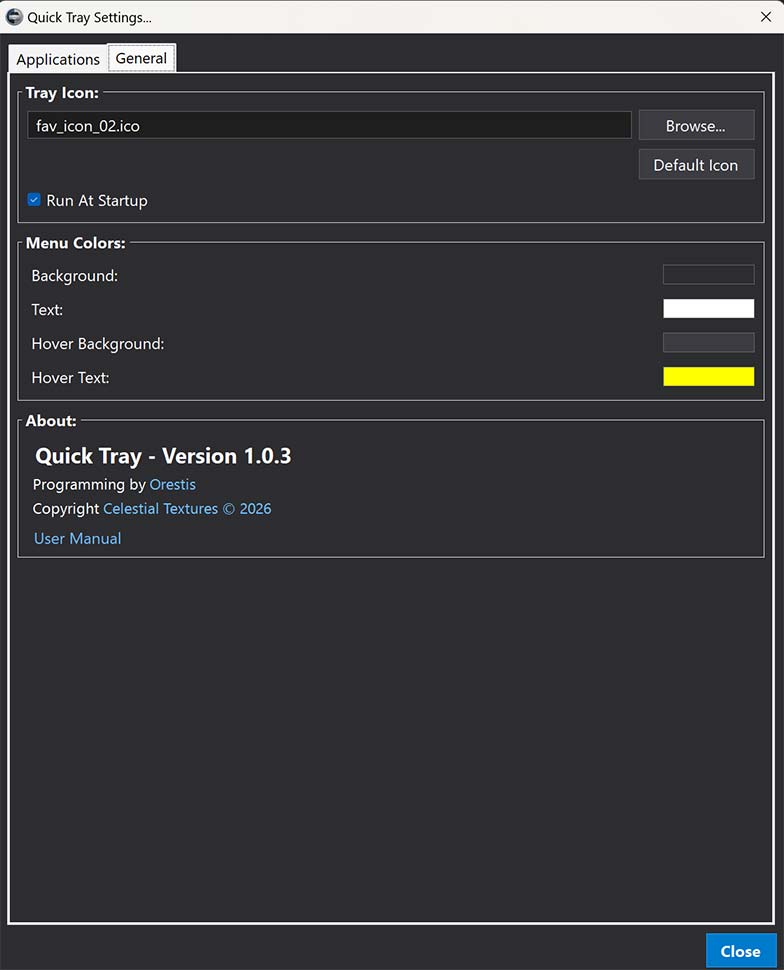
General — Icon path and Browse... for a custom .ico menu bar icon; Default restores the built-in icon; Run At Startup (macOS 13+, signed app).
About — version 1.0.2, credits, copyright, and a User Manual link (opens the installed manual if present, otherwise the online manual at celestialtextures.com).
Tray Icon — Browse..., Default Icon, and Run At Startup (Windows Registry Run key).
Settings — Menu Colors
On the General tab, customise the left-click app menu:
- Background — menu background colour.
- Text — normal item text colour.
- Hover Background — highlight when the pointer is over an item.
- Hover Text — text colour on hover (default: yellow).
Click a colour swatch to open the colour picker. Colours are stored in quicktray.ini.
Settings — About
At the bottom of the General tab, About shows version 1.0.3, programming credit, Celestial Textures copyright, and a User Manual link.
The User Manual link opens the installed HTML manual when available; otherwise it opens the online manual at Celestial Textures.
User Data & Files
| Item | Path (macOS) |
|---|---|
| Settings INI | ~/Library/Application Support/Celestial Textures/Quick Tray/quicktray.ini |
| Manual + legal | ~/Library/Application Support/Celestial Textures/Quick Tray/manual/ |
| Application | /Applications/Celestial Textures/Quick Tray.app |
| Item | Path (Windows) |
|---|---|
| Application | %ProgramFiles%\Celestial Textures\Quick Tray\QuickTray.exe |
| Settings INI | %AppData%\Celestial Textures\Quick Tray\quicktray.ini |
| Previous settings | %AppData%\Celestial Textures\Quick Tray\quicktray.ini.bak |
| Unreadable settings copy | %AppData%\Celestial Textures\Quick Tray\quicktray.ini.corrupt |
| Manual + legal | %ProgramData%\Celestial Textures\Quick Tray\manual\ |
| Default tray icon | %ProgramFiles%\Celestial Textures\Quick Tray\default.ico |
Legacy settings at ~/Library/Application Support/QuickTray/ are migrated on first launch.
Your app list is stored in quicktray.ini. Quick Tray does not rewrite this file when it starts or quits. The file is created only if it is missing, replaced with the default apps only if it exists but contains no applications, and updated when you change Settings.
Legacy settings under older Quick Tray folders are migrated on first launch.
Uninstall
If you installed via the Celestial Textures .pkg, open:
/Applications/Celestial Textures/Uninstallers/Uninstall Quick Tray.app
The uninstaller removes the application, manual, and uninstaller. You can optionally delete quicktray.ini.
Manual removal: quit Quick Tray, delete Quick Tray.app, and remove the Application Support folder if desired.
Open Start Menu → Uninstall or Apps & features and remove Quick Tray.
The uninstaller removes the application and manual. Optionally delete settings:
%AppData%\Celestial Textures\Quick Tray\
Troubleshooting / FAQ
Menu bar icon missing
Check Activity Monitor. Relaunch from Applications. Hide conflicting menu extras on small screens.
Tray icon not visible
Click the ^ chevron in the taskbar. Ensure Quick Tray is running in Task Manager.
Run At Startup does not work
Install a Developer ID signed, notarized build. macOS 13+ required.
Check Settings → Apps → Startup or Task Manager → Startup. Re-enable in Quick Tray Settings → General.
“App is damaged”
Re-download from Celestial Textures. Verify notarization:
codesign -dv --verbose=4 "/Applications/Celestial Textures/Quick Tray.app"
An app does not appear in the left-click menu
Invalid paths are hidden. Verify the path in Settings → Applications or re-add the app.
Settings Reset warning
If quicktray.ini exists but cannot be read, or it contains no applications, Quick Tray restores the default app list and shows a one-time Settings Reset alert. A valid settings file is left unchanged. If the file is missing, it is created with the defaults and no alert is shown.
If quicktray.ini is missing or cannot be read, Quick Tray restores the default apps (Calculator, CMD, and Notepad) and shows an alert. The previous file is kept as quicktray.ini.bak, or as quicktray.ini.corrupt when the settings file itself could not be read. Both are in %AppData%\Celestial Textures\Quick Tray\.
Credits
Quick Tray 1.0.21.0.3 — © 2026 Celestial Textures.
Programming by: Orestis
Company: Celestial Textures