Just Say It!
A text-to-speech instrument plug-in that turns typed text into audio using your computer's built-in speech voices. Adjust stretch, pitch, space, echo, and volume in real time, trigger playback from MIDI, export speech to a WAV file, and use it inside your DAW or as a standalone application.
macOS & Windows — VST3, CLAP, AU (macOS), and standalone application
Introduction
Just Say It! is an instrument plug-in: it produces audio on its outputs without requiring an audio input. Type or paste text, choose a system voice, press Play, and hear synthesized speech through your mixer.
No AI voices
Just Say It! does not use artificial intelligence for speech. It uses the text-to-speech voices built into your operating system:
- macOS — system Speech voices
- Windows — Windows Speech (WinRT, with SAPI fallback)
The same message appears in the in-plug-in help overlay (?).
Quick Start
- Install the plug-in for your platform (macOS / Windows) and rescan plug-ins in your DAW.
- Insert Just Say It! on an instrument or MIDI track.
- Type text in the main text area (or use the default sample text).
- Select a voice from the Voice knob or the voice combo list.
- Click Play — synthesis runs in the background; audio plays when ready.
- Adjust Stretch, Pitch, Space, Echo, and Volume while audio is playing.
- Optional: click Export .wav to save the current text as a mono WAV file.
Tip. Enable Re-trigger (default ON) if you want voice changes or MIDI notes to restart speech immediately while playback is active.
Installation — macOS
System requirement: macOS 10.14 or later, Apple Silicon or Intel.
| Format | Installed location |
|---|---|
| VST3 | /Library/Audio/Plug-Ins/VST3/Celestial Textures/Just Say It!.vst3 |
| CLAP | /Library/Audio/Plug-Ins/CLAP/Just Say It!.clap |
| AU | /Library/Audio/Plug-Ins/Components/Just Say It!.component |
| Application | /Applications/Celestial Textures/Just Say It!.app |
| Uninstaller | /Applications/Celestial Textures/Uninstallers/Uninstall Just Say It!.app |
| Manual | ~/Library/Application Support/Celestial Textures/Just Say It!/manual/ (includes LICENSE and third-party notices) |
- Quit your DAW.
- Run the installer (
.pkg). - Rescan plug-ins in your host.
- If macOS blocks the app, right-click → Open, or allow in System Settings → Privacy & Security.
Uninstall: open Uninstall Just Say It!.app in /Applications/Celestial Textures/Uninstallers/, or remove the paths above manually.
User data folder. Settings and support files are stored at:
macOS: ~/Library/Application Support/Celestial Textures/Just Say It!
Windows: %ProgramData%\Celestial Textures\Just Say It!
Installation — Windows
System requirement: Windows 10 or later, 64-bit.
| Format | Installed location |
|---|---|
| VST3 | C:\Program Files\Common Files\VST3\Celestial Textures\Just Say It!.vst3\ |
| CLAP | C:\Program Files\Common Files\CLAP\Just Say It!.clap |
| Standalone | C:\Program Files\Celestial Textures\Just Say It!\Just Say It!.exe |
- Close your DAW.
- Run the setup program.
- Rescan plug-ins in your host.
- HTML manual (after installer):
%ProgramData%\Celestial Textures\Just Say It!\manual\index.html
The Standalone Application
The standalone app runs Just Say It! without a DAW. Use File → Preferences to choose audio output and MIDI devices.
| Platform | Location |
|---|---|
| macOS | /Applications/Celestial Textures/Just Say It!.app |
| Windows | C:\Program Files\Celestial Textures\Just Say It!\Just Say It!.exe |
- macOS: Just Say It! (About, Preferences, Quit) · Window · Help (About, Manual)
- Windows: File (Preferences, Quit) · Help (About, Manual)
- Manual opens the installed HTML manual in your browser when present; otherwise the online manual
- Instrument output only — no audio input is required.
Window Overview
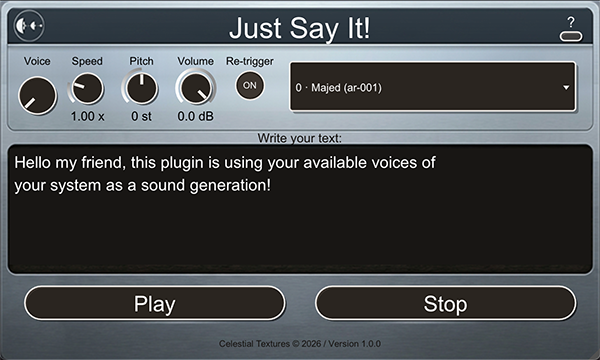
Default window size is 600 × 360 pixels. Drag the corner resizer to scale the UI; the scale is saved in your project or standalone session.
| Area | Description |
|---|---|
| Title bar | Just Say It! (white text) and the ? help button |
| Control row | Voice, Stretch, Pitch, Space or Echo (order swaps), small ↔ switch, Echo or Space, Volume, Re-trigger, voice combo |
| Status line | Above the text area — Synthesizing…, export progress, errors, and hints |
| Text area | Multiline editor — click to type or edit (up to 10,000 characters); scroll when text overflows |
| Play / Stop / Export | Centered row — Play starts synthesis; Stop cancels playback; Export .wav renders and saves a mono WAV (plug-ins and standalone) |
| Footer | Celestial Textures © 2026 / Version … |
Controls
| Control | Range | Description |
|---|---|---|
| Voice | System voices | Knob + combo list. Labels show index, name, and language (e.g. 0 · Samantha (en-US)). Combo text is white; turns black when you hover. Scroll the mouse wheel over the combo to step through voices. |
| Stretch | 1.0× – 10.0× | Time-stretch during playback. At 1.0×, speech plays at natural length. Above 1.0×, speech is slowed using a WSOLA time-stretch engine. Synthesis always runs at normal speed. |
| Pitch | −48 … +48 st | Pitch shift in semitones during playback. Independent of stretch. Also set by MIDI (see below). |
| Space | 0 – 100% | Reverb macro — adds room ambience. See Space & Echo. |
| Echo | 0 – 100% | Delay macro — adds rhythmic repeats. See Space & Echo. |
| ↔ (switch) | Space→Echo / Echo→Space | Small circular toggle between the Space and Echo knobs. Swaps which effect runs first and swaps knob positions on screen. |
| Volume | −60 … 0 dB | Output level during playback (real-time). |
| Re-trigger | On / Off | Circular toggle (default ON). Shows ON / OFF in white on the knob; orange highlight on hover. See Re-trigger. |
| Export .wav | — | Blue button in the centered Play / Stop row. See Export .wav. |
| Text | 10,000 chars | Not a host parameter — stored in plug-in state with your project. |
Speech engine. This plug-in does not use AI. On macOS, speech is rendered with
the system say command at normal rate; on Windows, it uses WinRT Speech (with SAPI fallback). Both use voices already installed on
your computer. Stretch, Pitch, Space, Echo, and Volume apply during playback and export — not at synthesis time.
Space & Echo
Space and Echo are macro effect knobs — turn them up for more reverb or delay without diving into individual effect parameters.
| Switch position | Signal order | Character |
|---|---|---|
| Space → Echo (default) | Reverb, then delay | Cleaner repeats; echo is less prominent in the reverb tail |
| Echo → Space | Delay, then reverb | Delayed signal feeds the reverb more strongly — wetter, more spacious repeats |
Click the small ↔ switch between the two knobs to toggle. The knob labels and positions swap on screen so the left knob is always the effect that runs first.
Both effects follow Stretch and Pitch in real time during playback and are baked into Export .wav output.
Export .wav
The blue Export .wav button sits in the center of the plug-in window, next to Play and Stop. It is available in all plug-in formats (VST3, AU, CLAP, …) and in the standalone application.
- Type or paste your text and choose a voice.
- Set Stretch, Pitch, Space, Echo, and Volume as desired — these settings are snapshotted when you click Export and baked into the exported file (including Volume, so the WAV level matches live playback).
- Click Export .wav.
- Wait while the status line shows Synthesizing for export….
- Choose a save location in the file dialog — a mono 16-bit WAV is written to disk.
Notes. Export uses the current text, voice, and playback-effect settings at the moment you click Export .wav. Any active playback or synthesis is stopped first. Stop also clears any lingering Space/Echo tail before the next Play. If the text is empty or no valid voice is selected, the status line shows an error instead of opening the save dialog.
Re-trigger
The circular Re-trigger toggle (default ON) controls whether active speech restarts when you change voice or receive MIDI. The knob highlights on mouse-over (same accent as other controls).
| Re-trigger | Voice change while playing | MIDI Note On while playing |
|---|---|---|
| ON | Restarts from beginning | Restarts; sets pitch from note |
| OFF | UI updates only | Sets pitch only; no restart |
| OFF (idle) | — | Starts playback |
Help overlay
Click the ? button in the top-right corner to open the help overlay. Dismiss it by clicking ? again.
At the top of the overlay:
Just Say It!
This plug-in does not use AI for speech.
It uses the text-to-speech voices built into your operating system.
Below that you will find a User Manual link (opens the installed HTML manual when present; otherwise the online manual), a quick MIDI reference, and credits.
MIDI
Any Note On (velocity > 0) can trigger Play according to the Re-trigger rules above.
- C3 (MIDI note 48) = 0 semitones (unity pitch).
- Pitch semitones = note number − 48, clamped to −48 … +48.
- Valid note range for pitch mapping: MIDI notes 0–96.
- The Pitch knob display updates as soon as each note is received.
- While you are still editing the text box, Play / MIDI / Export use the text currently on screen (macOS and Windows).
See also the help overlay for the same MIDI summary inside the plug-in.
Workflows & Tips
- DAW automation — Automate Stretch, Pitch, Space, Echo, Volume, and Voice index from your host.
- Slow speech — Use Stretch above 1.0× to lengthen speech without changing pitch; combine with Pitch for creative tuning.
- Spatial effects — Automate Space and Echo for builds and transitions; try the ↔ switch to change how wet the tail sounds.
- Long text — Very long passages take longer to synthesize; watch the status line. Scroll the text area with the mouse wheel when content overflows.
- Quick stop — Stop cancels synthesis and clears playback immediately.
- Export to disk — Export .wav synthesizes the current text and prompts for a save location. Playback stops while export runs.
- UI scale — Use the corner resizer; scale is recalled when you reload the project.
- Multiple instances — Each instance has its own text and voice selection.
Troubleshooting / FAQ
Does this plug-in use AI voices?
- No. Speech is generated with your operating system's built-in text-to-speech — not cloud or AI models.
- On macOS, voices come from System Settings → Accessibility → Spoken Content (or legacy Speech settings).
- On Windows, install voices under Settings → Time & Language → Speech.
Why does Windows show fewer voices than macOS?
- Just Say It! lists only the text-to-speech voices already installed on your computer. It does not ship its own voice library.
- macOS often includes more voices by default, and Apple makes it easy to download additional Speech voices in System Settings.
- Windows typically starts with a smaller set (often one voice per language). Extra natural or neural voices are usually optional downloads from Windows, not missing plug-in features.
- To add voices on Windows: open Settings → Time & Language → Speech, then Manage voices / Add voices (wording varies on Windows 10 vs 11). On Windows 11 you may also need to add a language pack with speech support. Some downloads require an internet connection.
- After installing new voices, fully quit and reopen your DAW (or remove and re-add the plug-in) so the voice list refreshes.
- If a voice does not appear in Windows Speech or Narrator settings, it will not appear in Just Say It! either.
No sound after Play?
- Check that text is not empty and a valid voice is selected.
- On macOS, confirm
/usr/bin/sayworks in Terminal. - On Windows, verify voices under Settings → Time & Language → Speech (WinRT / OneCore voices).
- Ensure the track is not muted and the plug-in output is routed correctly.
Standalone app: no audio?
- Open Preferences and select a valid output device.
Host does not list the plug-in?
- Confirm install path and rescan / clear plug-in cache.
- Quit and restart the host after installing.
Speech sounds too fast or slow?
- Use Stretch (1.0× = natural length). Values above 1.0× slow speech down. Pitch changes tuning independently.
- Clicks when changing Stretch near 1.0×? The plug-in crossfades between direct playback and the time-stretch engine around unity stretch.
- Export level different from playback (older builds)? From version 1.0.3, exported WAV files include the Volume knob and match live output on macOS and Windows.
- Volume sounds wrong on Windows (older builds)? Version 1.0.3 fixes double application of the Volume knob on Windows.
- MIDI / Play spoke the old text while still typing (macOS, older builds)? Current builds commit open text before Play, MIDI Note On, and Export so speech matches what you see on screen.
Specifications
| Item | Value |
|---|---|
| Version | 1.0.4 |
| Type | Instrument (stereo out) |
| Default UI size | 600 × 360 px |
| Resize range | 400×280 … 1600×900 |
| Latency | 0 samples |
| MIDI in | Yes (Note On → Play + pitch) |
| State save | Parameters, text, UI scale |
| macOS minimum | 10.14 |
| Windows minimum | 10 (64-bit) |
| User data (macOS) | ~/Library/Application Support/Celestial Textures/Just Say It! |
| User data (Windows) | %ProgramData%\Celestial Textures\Just Say It! |
| Manual (macOS) | ~/Library/Application Support/Celestial Textures/Just Say It!/manual/ |
| Manual (Windows) | %ProgramData%\Celestial Textures\Just Say It!\manual\ |
Credits
Just Say It! version 1.0.4
© 2026 Celestial Textures
Programming by Orestis
www.celestialtextures.com